Everybody Staze...

Nobody leavz...

  • Home
  • About Me
    • LinkedIn
    • Lab
  • Contact
  • Links
  • Reviews
  • Sitemap
  • Weather

APC Back-UPS RS 700VA Master Control

2010/02/20 By staze

Part 1 – TED Signal Sink
After a week’s wait from ordering it, my UPS arrived on 2/19/10. You’re never quite ready for how heavy these things are. Yay Lead. After bringing it home, and plugging it into it’s new home, I immediately noticed something. My TED (Review) RDU stopped receiving a signal from the transmitter down in the breaker box. Just what I was afraid of since I’d read about things like this in the past. UPSes can act as X10 sinks (the TED uses something similar to X10 signaling to communicate). Basically, X10 (and the TED) communicate at 120khz and 132khz (respectively) on the power lines. UPSes have noise filtering build in that basically shunts all frequencies other than 50-60hz to neutral. So this basically acts like a “short” for those X10 and TED frequencies, thereby draining them out of that phase (or the house if I had a phase coupler), since energy flows the path of least resistance.

So, damn. I plugged the UPS into an outlet on the other side of the house (which is on another phase on my power system) so I could at least make sure it worked, and get it charged, and went about ordering an X10 filter (this one). Now I get to wait another week until that arrives before I can actually put this UPS through it’s paces.

Part 2 – Post Filter
The filter arrived on Friday, and after putting it between the UPS and the wall, my TED signal no longer “disappears”. The extra cool part is that by putting the UPS behind that, and all my computer equipment on the UPS, I’ve now removed a big source of “noise” that can interfere with the TED. But, this review isn’t about that.
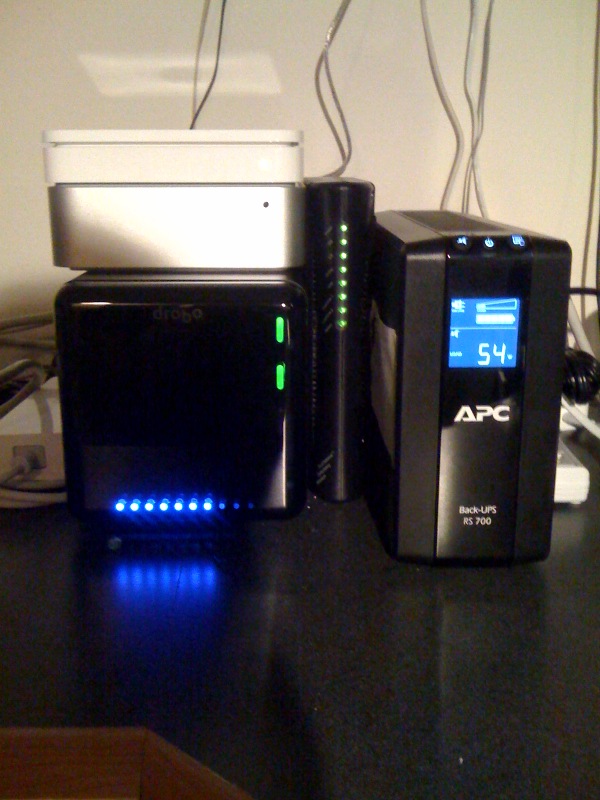
UPS installedSo, I moved everything around in the office, and installed the Mini, Drobo, airport, cable modem, and LCD monitor on the “backup” section of the UPS. The laser printer, my weather station base, and the cordless phone are all installed on the non-battery backup section of the UPS. See the picture to the left. You’ll notice that all that stuff on the “battery” side of things, only draws 54w. Which means I’ll get about 40 minutes of backup time with that load. Running the CPUs at full load on the mini results in 75w of draw. Still very respectable. I believe if the Drobo was fully loaded, it’s supposed to draw upwards of 40w on it’s own, but I can’t imagine that’s the case given it’s current load.

Looking at how 10.6 sees the UPS, I’m quite happy. The only odd thing is the “unknown time remaining” up on the menu bar, but if you go into the Energy Saver system preference, you can see 100% charge, and set all the settings like, power back on after outage, spin down the disks, put the display to sleep, the computer to sleep, etc. As well as telling the machine to shutdown either after any of the following:

  • Being on UPS for x amount of time
  • When the UPS has x amount of time remaining
  • When the UPS charge is at x or below

Extremely cool. It would be cool if the UPS reported remaining runtime to the OS regularly, and maybe it does and 10.6 doesn’t know to look at it. But, it doesn’t overly matter. Just like on a laptop, you can’t see battery life remaining while you’re plugged into AC.

[xrr rating=9/10]The only problem with it is that it emits a high pitch clicking sound. I’m not sure if that will fade with time, or if it’s just a byproduct of the consumer level APCs. Searching online seems to indicate it’s not completely unheard of, but it is a bit annoying. If I ever have a problem with the UPS, I’ll certainly mentioned that issue when I go to have it serviced. But all and all, it’s a great investment, and it’s nice to have that “piece of mind” incase of a random power outage (though they’re rather rare in this area given underground power, and a reliable power company).

Filed Under: Reviews Tagged With: APC, BR700G, Smarthome, TED, UPS, X10 Filter

Proxy Splunk behind Apache 2.2

2010/02/20 By staze

Splunk is pretty damn cool. And since Splunk 4, it’s been much easier to set up and run. And since my environment at work produces a lot less than 500MB/day of logs, I can safely use the free version of splunk. But, this has a downside. You don’t get user authentication (there’s other stuff you don’t get, but the big one to me is user auth).

So, the obvious solution is to proxy Splunk behind apache and have apache do the user authentication. There’s some good info about doing this online, but it seems none of it is complete for what I was trying to do.

So, here’s what I had to do. First, the relevant chunk in the apache config (if you’re doing this over https, you may want to add “SSLProxyEngine On” before the mod_rewrite section):

<VirtualHost *:80>
	ServerName server.example.com:80
	ProxyPass /splunk http://127.0.0.1:8000/splunk
	ProxyPassReverse /splunk http://127.0.0.1:8000/splunk
	<IfModule mod_rewrite.c>
		RewriteEngine On
		RewriteRule ^/(static.*) /splunk/$1 [P]
	</IfModule>
</VirtualHost>

So, on my server, I’d go to https://server.example.com/splunk to visit my splunk page. The rewrite rule is there to fix what seems like a bug in the “jobs” page for splunk, that doesn’t seem to obey the “root_endpoint” set below.

The second part of this is to set a few things in the web.conf.

In my case, since this is running on a Mac, these go in a file in /Applications/splunk/etc/system/local/web.conf

root_endpoint = /splunk
tools.proxy.on = True
updateCheckerBaseURL = 0

The first basically says “everything is in the /splunk subdirectory”. The Second I’d assume says “Splunk is being proxy’d”, and the Third is something I had to add to fix a weird issue I was seeing after doing all of this. Once I’d proxy’d it, every time I would open a new session to Splunk, I would see the “Checking for Updates” and then the “Agreement” page, which the continue button wouldn’t point back to http://server.example.com/splunk but just http://server.example.com/. So, That third line basically disables the update check. It’s kind of silly anyway since I keep an eye on the splunk.com webpage to check for updates.

As for securing splunk beyond proxy’ing it, I just set up a realm in Server Admin that locks down the /splunk location. Pretty easy.

Good luck. Splunk is pretty cool, and makes it dead simple to track down issues, get statistics, etc. I’m still not really proficient with it, but I hope over time I’ll learn more of what I can do with it.

Filed Under: Sys Admin Tagged With: Apache, Proxy, Splunk 4

I hate EULAs. Especially Apple’s OS X Client one…

2010/02/17 By staze

So, I’m a Sys Admin. I spend all day running down problems, and when I’m not doing that, I’m usually working on bigger problems that are multi-day/week/month issues. And when I’m not doing that, I’m playing with something cool that’ll give us a better user experience, show us data we haven’t seen, etc. Add to this, we basically have no money (we’re State Higher Ed). So, the answer for testing issues is, obviously, virtualization (since we can’t afford to have test machines sitting around).

Now, VMware and Parallels both support Virtualizing OS X Server on Apple Hardware. They do not, however, support Virtualizing OS X Client, since Apple’s EULA specifically says “You can’t do that”.

So, being a Sys Admin, and not taking anything at face value, you look around online, and find various ways around this. Yes, it’s breaking EULA. But, I am running this on Apple Hardware, and we have broken machines sitting in a closet not running any OS. So, far as I’m concerned, it evens out. Obviously this wouldn’t hold up in court, but seriously Apple. The EULA should be something like: “You can virtualize OS X Client on Apple Xserve hardware” or something like that. Make the end user pay for it, but don’t make us hack software to make it work.

Anyway, the big thing that made me create this post is… VMware Fusion 3.0 changed things a bit. This info is still online except one minor tidbit. You HAVE to use physical media when doing the install. Don’t ask me why, you just do.

As for the rest of the info… I leave it to the readers. As for fixing the EULA… Please, Apple… Please.

UPDATE: The issue with VMware and physical media seems to be that VMware is convinced it should be attached to the VMware tools disk image to install that. If there was some way to get around that, it should be easy enough to boot off an image. Because once I had it installed, and unmounted the VMWare Tools “disk”, the OS X installer image immediately mounted. *shrugs* Oh well… I got it installed.

UPDATE 2: So a big reason for this was testing. After I got a normal 10.5 client installed, I created a second VMware disk, and restored our lab image onto it. It’s actually pretty cool to have this. Means I can finally test some things that normally would require a separate machine. So again, please Apple, fix the EULA. At the very least, work with VMware to allow Mac OS X Server (and client ideally) to run on vSphere. Hell, sell some Dongle for $10k. Or hell, get them to port vSphere to the Mac, so you can put a couple Xserves in a vSphere cluster, and they’ll take care of running the Mac OS instances. I want to be able to virtualize OS X on vSphere without jumping through hoops.

Filed Under: Sys Admin Tagged With: EULA, Mac OS X, Parallels, Virtualization, VMware Fusion

« Previous Page
Next Page »

Weather

Categories / Archives

  • Apple
  • Coding
  • Electronics
  • Energy
  • Home Ownership
  • Miscellany
  • Politics
  • Prius
  • Sys Admin
  • Travel
  • Uncategorized
  • Work
  • June 2026
  • April 2026
  • August 2025
  • April 2025
  • January 2024
  • February 2021
  • July 2020
  • January 2020
  • April 2019
  • March 2018
  • February 2018
  • June 2017

Copyright © 2026 · Staze On Genesis Framework · WordPress · Log in