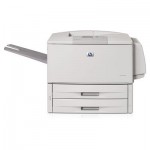
 It seems HP’s documentation (here), as well as a lot of other documentation on the web (here, and here) is incorrect on how to initialize the HD on a Laserjet 9050. After beating my head against it for about 20 minutes this morning, I finally figured it out. So, here goes.
- Turn the damn thing off.
- Turn it on, and when the memory count starts, hold “Menu” (the big button on the left side of the control panel above “Stop”).
- All the LEDs should light up after the memory count stops. At this point, release “Menu” (Nothing will change on the LCD, it’ll just keep the memory count, and all three status LEDs will remain lit).
- Press the “Back” button (looks like a sideways “U-Turn” ( to the left of the “Go” (√) button, looks kind of like ↩) and you should see “Initialize Disks”
- Press “Go” (√) and the printer should continue booting
- Done.
Most of the HP documentation and other things I’ve found online indicate you should start pressing “Go” or “Menu” before turning on the printer. But this seems to tell the printer that the button has failed, and to ignore it. So, don’t press anything until the memory count starts.
That’s all there is to it. I happened to find an old EIO HD sled around, and put an old 20GB Fujitsu HD on it, and viola, instant printer storage. I had waited a while to install it for fear of it not working. But, everything seems good. =)
Good luck!

Morgan says
can i change the EIO hard drive, and how
staze says
You should just be able to pull the sled out of the printer, replace it with another HD, and start up the printer following my directions. I wouldn’t put TOO large of a HD in the printer as I doubt it’ll recognize it. =/