Archive

Archive for January, 2010

Pruning

January 23rd, 2010 staze No comments

The weather today lent itself quite well to yard work, which is nice as we still hadn’t cleaned up the mess from the wind storm earlier this week. Tara started with just raking up the driveway, and we quickly moved to spraying the moss on the walk way with iron (a good, low impact, way to kill moss). Then on to pruning our maple in the front yard. Normally, pruning japanese maples should be done either right after leaf fall, or in mid-summer. But, we’re impatient, and I figure since we’re sealing the wounds, bleeding should be minimal.

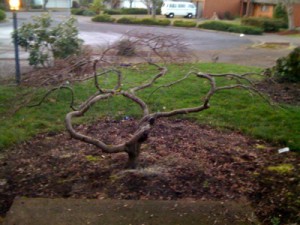
We removed about 1/4 of the total foliage I would guess. But, I would say after 3 years of doing this, we now have a maple that looks presentable (at least skeleton wise). We will have to see what it looks like once it leafs out.
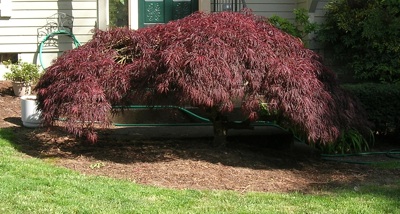
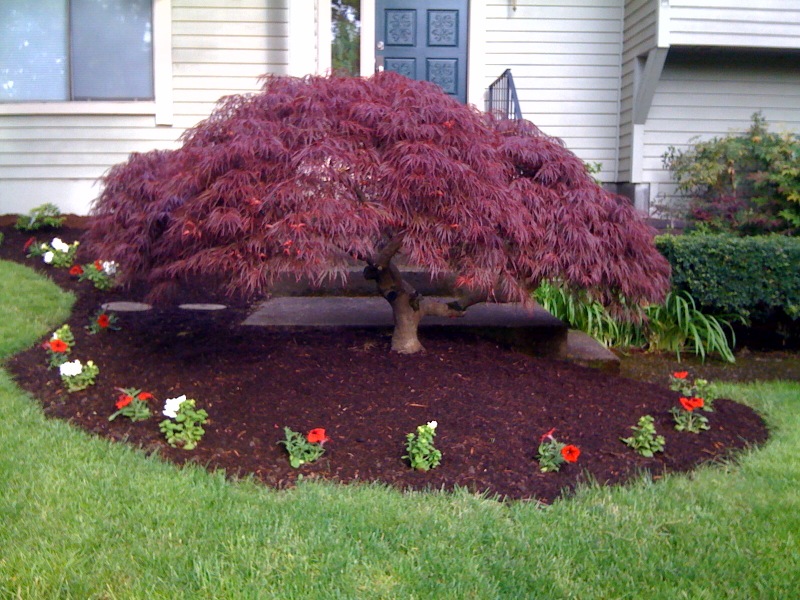
Leafed out Acer Palmatum, Summer 2009You might think it looks spartan (below image), but given what it used to look like, a giant blob (gumdrop, right image), this is a huge improvement. This is more what you would expect from a japanese maple you’d see at a Japanese garden somewhere. I’m no expert, but I know the basic theory of removing crossing branches, parallel branches, branches that move directly toward or away from the viewer, and opening up the structure to allow the viewer to admire the structure of the tree. We also removed or trimmed branches to keep the leaves off the ground when it does leaf out (this was an issue last year).

Overall, the goal is to produce a tree that looks like an older, larger, more mature version of itself or similar tree.
Acer Palmatum

Not sure if we succeeded, but we do believe it looks better. My only hope is that we didn’t open it up so much that we get bark scalding during the summer, but that shouldn’t be an issue since it will be leafed out enough by then, as well as the fact that it barely gets any direct sun anyway. We have Douglas fir’s that shield it from the south sun. It gets a bit of late evening sun, but that shouldn’t be an issue either.

Also pruned the Rhododendron next to the lamp post in this picture (it was rather blob-ish). This should cut down on the aphid infestations it gets during the summer. Aphids tend to dislike airflow. Also gave all the rhodie’s in the yard a spray of iron to help with chlorosis.

I’ll try to remember to post some more photos once the maple leafs out and we see how it looks. So, expect more on this in about 4-5 months. =)
Apple TV Recovery

January 22nd, 2010 staze No comments

UPDATE: Did have a weird issue where the AppleTV was rebooting randomly. Restoring to factory defaults again (after the 3.0.1 update), then re-updating to 3.0.1 seems to have fixed it. Will know more after the weekend.

My boss, about a year ago or more, had his HD crap out on his Apple TV. So, being ingenious, he brought it to me and I proceeded to get it back working by finding a DMG online of the boot partition that allowed it to work again. Problem was, he couldn’t run software updates on it. It would see the update, but wouldn’t let him install it. Was quite odd.

So, fast forward to today, when he finally brought it back in, and I started looking around online. Turns out, you need the recovery partition to be intact for updates to work. Not sure why, but you do.

So, after looking all around online, I did find a source for a full image of a working 2.0.2 Apple TV. If you’re familiar with torrents (and more specifically, the former major torrent site that is still around, but who knows for how long…), you can look for something called “smallatv.rar”.

So, once you have that, take a new drive (or one you’ve removed all the partitions from (you can do this via disk utility by selecting 1 partition, and then for type, select “free space”.), and do the following from terminal.

diskutil list

With that, find the drive you’re restoring. In my case, it was “disk6″.

Then:

dd if=/location/of/smallatv.dmg of=/dev/disk6 bs=1024k

That’ll take a bit, but you should now have an AppleTV drive. Problem is, the media partition is only 35GB. If you only had a 60GB drive, then you’re good. If you had bigger than that, then read on.

Now, go get a copy of AtvCloner from here: http://dynaflashtech.net/atvcloner/

Load that up, and in the first tab, point it at /dev/disk6 and hit “image source partitions”. This will take a bit, but you should end up with 3 dmg’s. An efi.dmg, a boot.dmg, and a recovery.dmg. Once you have those, quit AtvCloner, and go back into diskutil and “re-empty” the drive.

Okay, so now, go back into AtvCloner, and go to the second tab. In this tab, point it at the 3 dmg’s you just created, and if the drive is bigger than 500GB, then check the appropriate box. Then hit “Prepare New Drive”. This will take a bit, but once you’re done, you will have a functional, and full sized AppleTV drive. Drop that into your AppleTV, and boot it up.

One thing I did notice was that the downloaded image isn’t stock. It has some hack in it, since you see a Linux logo when booting. But, once you’re booted, you can go to “Update Software”, and it’ll download the latest AppleTV OS (in my case, 3.0.1), and update itself, which removes whatever hack was there.

Good luck! I really wish Apple made some stuff easier.

chroot sftp on 10.5 Server

January 20th, 2010 staze Comments off

Looking around online, I found several instances of people wanting to chroot sftp on 10.5 server. The purpose being, they want to give access to sftp for users they may not trust, and want to keep them where they belong over sftp.

Unfortunately, there were a couple pieces missing from the instructions. So, thought I would fix that.

First, make a backup of /etc/sshd_config. While it should be easy enough to back out these changes, it’s just good practice to make a backup.

Second, create a directory for the “jail”. In my case, this was in /Volumes/Data/Websites/username.

The key here is that all directories up to and including the username directory must be read only by everyone but root when it comes to POSIX directories. So / would need to be root:group, and something like rwxr-xr-x. That goes for /Volumes, /Volumes/Data and /Volumes/Data/Websites.

The rest is all in the /etc/sshd_config

Comment out (with a #):

Subsystem sftp /usr/libexec/sftp-server

And add:

Subsystem sftp internal-sftp

At the end of the sshd_config, add:

Match User username
ChrootDirectory /Volumes/Data/Websites/username/
ForceCommand internal-sftp
AllowTcpForwarding no
X11Forwarding no

Or, if you want to enforce on a group:

Match Group usergroup
ChrootDirectory /Volumes/Data/Websites/
ForceCommand internal-sftp
AllowTcpForwarding no
X11Forwarding no

You can add both, and ssh will read from first to last. So, if you want specific users to go to specific folders, you can add them first, then end with a group policy.

Lastly, while testing this, make sure to watch /var/log/secure.log. You’ll see errors there when it doesn’t work. My problem, when working on this, was the write ability for users other than root on the parent directories. I had to systematically remove group and other write before it would work.

Those errors looked like:

fatal: bad ownership or modes for chroot directory component "/"

In the case of the root directory.

Lastly, this will remove SSH capability for the user specified. They will only be able to SFTP, but they’ll be locked into the directory specified. Great for a random student groups, in my case, that need to have a website, but you don’t necessarily want running wild on your system.

AFP, Kerberos, and 10.6

January 16th, 2010 staze No comments

UPDATE: Monday after a scheduled outage, I demoted my OD replicas to standalone (safer this way, I think), then ran `mkpassdb -kerberize` on the OD Master. About 5 minutes later, I had gone from 3500 Kerberos Principals to about 9500 (about 1500 of those are really old entries that I’ll clear out over the summer). I then added the replicas back. At that point, `kinit username` for previously failing users. We shall see.

UPDATE 2: Two days after the above, we have not seen any users having problems logging in. I will be talking to my AppleCare Enterprise friend tomorrow and seeing if he can shed some light on why AFP is trying to use Kerberos even though it’s supposed to only do “Standard” auth. More to come…

UPDATE 3: Well, that was nice while it lasted. Starting this week, on Monday, we started getting 2-3 users per day that couldn’t log in. Restarting AFP is the only way to get them logging in again. So, I’ve been doing that at about 6:45am each morning. So, I’ve got an open case with Apple at this point seeing what they can figure out. So far, it’s completely stumped them. We’ll have to see.

Starting with 10.5.7, I would occasionally see users (a small subset of users) that when they tried to login from a managed client (loginwindow, 10.5.8 client), they would get an error stating “You cannot login at this time because an error occurred”. If you then went to a computer that was unmanaged, and attempted to do a “Go-Connect to Server” and connect to the server over AFP, you would be presented with their home directory, only blank. Trying to connect over SMB would work, and everything was there.

The only way to make AFP work again would be to restart the AFP process. Obviously, this was really annoying, but I never could figure out the cause. Over the course of the summer break, we upgraded to 10.6 server, and didn’t see any instances of it.

Queue Fall term. We started seeing this problem the first week of the term, though slightly different. First, the clients are still 10.5.8 since we have about 36 PPC machines still in use (all G5 iMacs). Affected users would still get “Unable to login at this time because an error occurred”. So, I email a buddy that works for AppleCare Enterprise and forward on some log entries when it happens. Only things he sees are some IPv6 related messages (which is odd, since IPv6 is disabled), and maybe a Kerberos message… which, I don’t think much about at the time. Trying to connect to the server from “Go->Connect to Server” from an unmanaged client over AFP would result in a message saying “You do not have permission for any shares on this server”. Over SMB would result in seeing the shares, but trying to mount them would give you a permission denied error.

So, I go over my notes from the 10.5.x server days, and because it seemed to make things better with 10.5 server, I change AFP’s Authorization from “Any” to “Standard”. No change in results.

I bang my head against this for several days, trying many different options, but really don’t hit upon anything until an unrelated issue, where I am playing with some ACLs, and notice that if I “Deny” “Full Control” on a folder to a certain group, the folder disappears for that group. Not just “No access”, but it full on disappears. Huh. So many the issue is some kind of permissions thing. But, as my friend at AppleCare Enterprise mentions, the Effective Permissions Inspector (http://docs.info.apple.com/article.html?path=ServerAdmin/10.5/en/c2fs28.html) shows the permissions are fine for the user’s home folder. Okay…

So, I dig around some more, and randomly try “kinit” for an affected user. “kinit: Unable to acquire credentials for ‘user@REALM.EXAMPLE.COM’: Client not found in Kerberos database”. Hmmm. so I try for another affected user… same thing. I try it for all the users I’ve got records for having seen this issue. All are missing kerberos records. Well shit. So, I use kadmin to add a record for one of the users that’s seeing the problem (`kadmin -p admin -q addprinc user@REALM.EXAMPLE.COM` then type in the admin password, and their password twice). It adds, and after propagating, I can kinit. But, AFP still doesn’t work. Few hours later, I try AFP again, and I am allowed to mount their home, but it’s blank. Holy crap! Back to the 10.5.8 symptom. So obviously I’m getting somewhere. Later that night, I restart AFP, and suddenly the user account works perfectly. Ah ha!

K, so I get a list of all the kerberos principals on the server, ~3500. Hmm… given we have about 7600 users in the OD, that seems like a problem. But, after looking at most of the users that are seeing this, I find they’re all older user accounts. Meaning they were created when the OD Master was an older machine (G4 Xserve, or an old Quicksilver) running 10.3.9 or 10.4.x (depending on how old the accounts were). All the newer accounts seem to have Kerberos records. But, when we upgraded to 10.6 Server on the OD from 10.5, it seems ALL accounts got an attribute added that says “altSecurityIdentities: Kerberos:user@REALM.EXAMPLE.COM”. Hmm… I guess I could see this causing an issue.

So the question, other than “why do these users not have kerberos principals?” is “Why is AFP using Kerberos if it’s authorization is set to Standard?” This seems like a bug, or there’s something going on I’m not understanding. Obviously it seems the auth system in SMB changed a bit too between 10.5 and 10.6, since it used to behave differently.

Either way, I’ll be running “mkpassdb -kerberize” on the OD Master on Monday during our systems outage (there is a scheduled, 2 hour, power outage to test power resiliency on campus) (I already ran a test case on a test OD master, and it did add kerberos entries for all the users. So, that’s nice). This should hopefully resolve this issue permanently. I will update this post once I’ve kerberized all users, and things work, and I’ll update again later next week once I know whether or not it resolved the issue. I’m also expecting some info back from my friend about why this might be happening with AFP.

One thing I will say… this has really got me looking at Kerberos. Previous to this, I didn’t really use it at all on our systems. But since playing with it, it seems pretty damn cool. =)

Well, more in a few days.

PHP 5.3 upgrade

January 11th, 2010 staze No comments

UPDATE: It appears there is a problem with the Entropy build of PHP 5.3.0, which prevents fopen’s from working. Not sure if it’s because it’s running on a PPC, or if there’s just something up with the build. At this point, I’ve moved back to PHP 5.2.9. In the next month or so, I’ll probably move back to PHP 5.3.1, but there will be more about that later.

So, yesterday I spent a good chunk of the day working on my website. I started with converting a couple scripts I run on the site (my gas info on the right, my power history, etc) from PEAR MDB2 to PDO. This really wasn’t that bad, and PDO seems faster, but it could just be perception.

More importantly, I upgraded PHP on the server to 5.3.0 from 5.2.9. For the most part, everything worked great… though Twitter Tools has stopped grabbing new tweets, and a few WordPress plugins are throwing errors dealing with strpos() rss.php.

The twitter tools error thrown is:
[Mon Jan 11 21:24:50 2010] [error] [client 10.0.2.1] PHP Warning: fsockopen(): php_network_getaddresses: getaddrinfo failed: System error in /path/to/website/wp-includes/class-snoopy.php on line 1142
[Mon Jan 11 21:24:50 2010] [error] [client 10.0.2.1] PHP Warning: fsockopen(): unable to connect to twitter.com:80 (php_network_getaddresses: getaddrinfo failed: System error) in /path/to/website/wp-includes/class-snoopy.php on line 1142

And yes, allow_url_fopen is enabled. Can’t figure it out at all.

The error other plugins are throwing is:
strpos() expects parameter 1 to be string, array given in /path/to/website/wp-includes/rss.php on line 577

I hope to get these fixed… but at this point, I can’t figure out what’s going on. =(

Obviously the possibilities are:

  • Bug in php
  • Bug in scripts
  • Some misconfiguration in php.ini

I don’t think it’s the last option, but I’m not 100% positive.

Anyway… that’s all for now.

Happy new year!